Scanning from the capture window
To scan a document:
-
Optional: Optional steps include setting the flash, selecting the document type, and so on.
-
Invoke a scan. The app has two capture modes:
-
 By default, auto-capture is enabled, and on startup the app displays the capture screen and tries to detect a document.
 -
 If auto-capture is disabled, center a document in window and tap the capture button.
-
-
Follow the on screen hints. The app uses auto crop and image cleaning to improve scan quality. Messages appear on the screen as follows:
-
Looking for document: The app is looking for the document and trying to detect its boundaries.
-
Capturing… hold steady: Edge detection can see the entire document.
-
No document found. Capture manually: The app cannot detect the document edges.
-
-
Edit your scan as described below.
-
Tap Save PDF to automatically convert your scan to a PDF and save to Adobe Document Cloud.
Optional steps
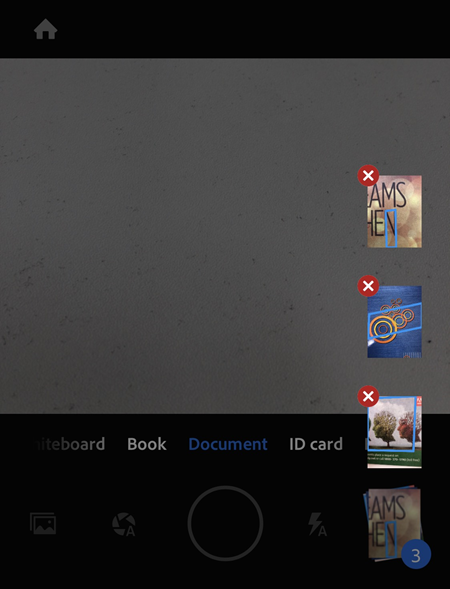
Use the options on the capture screen to control how you scan :
|
Item |
Description |
|---|---|
|
Scan type |
Streamline your workflow by selecting one of the Document types. |
|
|
If your device has a flash, you can set it to always on |
|
|
Toggle auto capture on |
|
|
Add an existing photo or document to your current scan collection |
|
|
Long press the thumbnail to view your last 3 scan thumbnails–you can delete these captures now or later. Tap the thumbnail to end your scan session and view/edit the file. |

 , or auto

Document types
While optional, selecting a document type prior to scanning saves you time later. The document type changes the scan name as well as how the app captures the scan. For example, the app captures the entire camera view for a whiteboard but uses boundary detection when capturing a business card.
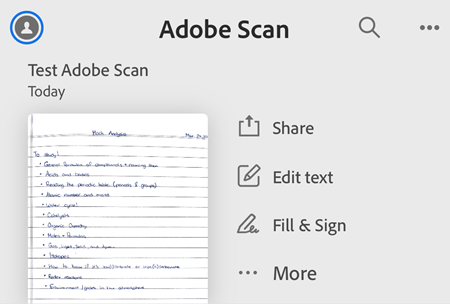
To help you get work done fast, the default menu options available on the preview screen and document thumbnails will vary by context. For example, a form will show the Fill and Sign menu item while a business card will show the Save to Contacts menu item.
Note
You can configure the default file name from the app’s preferences screen.
Whiteboard:
-
File name: Whiteboard + <date>
-
Full screen capture
-
 shown as the 3rd option on file card
Form:
-
File name: Form + <date>
-
Boundary detection
-
 shown as the 3rd option on file card
Document:
-
File name: Scan + <date>
-
Boundary detection
-
shown as the 3rd option on file card
Business Card:
-
File name: Business Card + <date>
-
Boundary detection
-
 shown as the 3rd option on file card
Importing from your gallery
The latest app version support importing images directly from your gallery to the Scan app.
-
Open the gallery.
-
Select an image.
-
Tap the Share icon.
-
Tap Adobe Scan.
Edit your scan
When you’re finished scanning, tap the documents thumbnail in the lower right-hand corner. From here, you can tap Save PDF or edit your scans. Edit options appear in the bottom toolbar.

These options allow you to:
Add images from your device
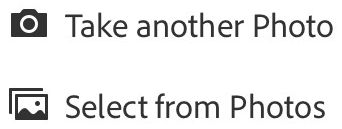
You can browse your device for images and documents that you can add to your current scan:
-
Tap

-
Take another photo or select a file from your device.
Reorder pages
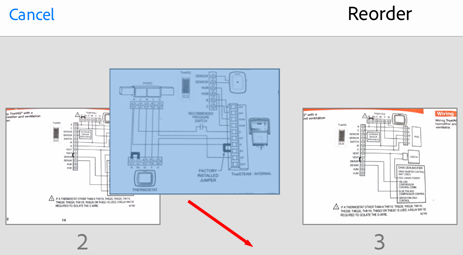
You can easily reorder pages:
-
To do so, enter the modify scan mode:
-
On any thumbnail on a file list, tap
 and then tap
  , or
, or -
In an open file, tap
in the bottom menu.
-
-
Tap

-
Drag and drop pages to new locations.
-
Tap Done.
Crop pages
Crop any page (adjust the borders) during or after scanning:
-
During a scan, tap the review thumbnail and then tap

-
After a scan, enter the modify scan mode
:-
On any thumbnail on a file list, tap
and then tap , or -
In an open file, tap
in the bottom menu.
-
To crop:
-
When viewing the page to modify, tap
-
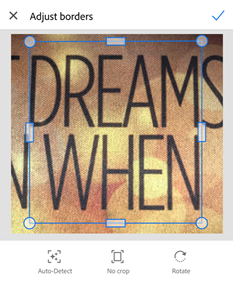
Drag the crop handles to resize the scan area.
-
 Auto-Detect: Let the app automatically position the crop borders.
 -
 No Crop: Reset the auto crop location.
-
-
Tap

Rotate pages
Rotate any page during or after scanning:
-
During a scan, tap the preview thumbnail and then tap

-
After a scan, enter the modify scan mode
:-
On any thumbnail on a file list, tap
and then tap , or -
In an open file, tap
in the bottom menu.
-
To rotate:
-
When viewing the page to modify, tap
-
Repeat as needed for other pages.
Adjust the color
You can adjust the color of any page.
-
To do so, enter the modify scan mode:
-
On any thumbnail on a file list, tap
and then tap , or -
In an open file, tap
in the bottom menu.
-
-
Navigate to the page you want to modify.
-
Tap

-
Choose your color options for the current page. You can:
-
Use the original photo
-
Use auto color to let the scan app make the adjustments.
-
Select grayscale to remove color.
-
Select whiteboard to increase the contrast.
-
-
To apply the setting across multiple pages, enable Apply to all pages.

Cleanup the image
With the swipe of your finger, you can erase unwanted artifacts, fuzzy images, or any other unwanted content. The “erase” action is essentially filling a selected area with a color you select (thus hiding that area).
You can perform image cleanup on a new scan or cleanup the image on an existing scan.
-
For an existing scan, enter the modify scan mode:
-
On any thumbnail on a file list, tap
and then tap , or -
In an open file, tap
in the bottom menu.
-
-
Navigate to the page you want to modify.
-
Tap

-
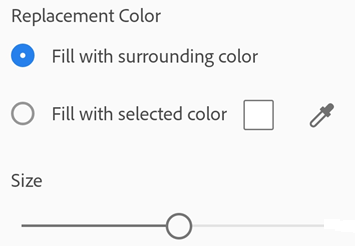
Select your fill color:
-
Fill with surrounding color: Use an app-selected background image as a brush color.
-
Tap the square: Choose a color from the color picker popup.
-
Tap the eyedropper: When the moveable eyedropper appears, move it over a color and tap
-
-
Zoom the image in and out as needed.
-
Swipe your finger over the area to erase an area.
-
Tap
.
Delete pages
You can delete any number of pages.
-
To do so, enter the modify scan mode:
-
On any thumbnail on a file list, tap
and then tap , or -
In an open file, tap
in the bottom menu.
-
-
Navigate to the page you want to delete.
-
Tap

-
Confirm you want to delete the page.
Canceling a scan
Cancel an in-progress scan by doing one of the following:
-
Tap
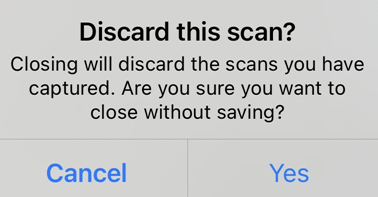
 . When the Discard this Scan dialog appears, choose an option or tap Discard.
 -
Long press the thumnail preview icon and tap the red X. You can delete one or more pages from the current scan.
Save as PDF
Once you’re satisfied with the scan, you can do the following:
-
Tap
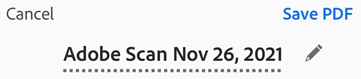
 or file name to edit the default name.
 -
Tap Save to automatically convert your scan to a PDF and then upload it to Adobe Document Cloud so that you can access the file anywhere.
Live edge boundary detection
The Scan app automatically tries to detect document boundaries. Live edge boundary detection and capture hinting behave differently in auto-capture mode and manual capture mode:
-
Auto-capture mode: When the app detects a document, a blue dots identify document corners. The “Capturing… hold steady” hint appears when the app is relatively certain a complete document is in range.
-
Manual mode: Tap the capture button when you’re ready.
Quick actions
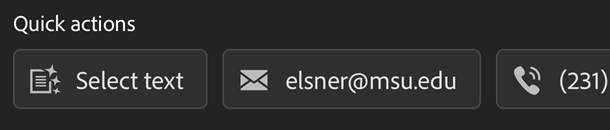
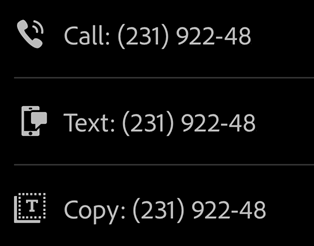
The latest app version supports performing common actions on your phone directly from a new scan. For example, when the app recognizes an email address or phone number, the capture screen provides buttons which allow you to email, call, or copy the captured text. This feature is is especially useful for business cards since you can quickly contact the person on the card.
-
Scan a document with text. The scan type MUST be set to Document. If the Scan app recognizes and email address or phone number, buttons appear on the capture screen.
-
Tap one of the quick action buttions (email, call, select text).
-
Choose an action; for example, you can invoke a call directly from the app.
0 Comments